01Scan the QRTable QR starts the journey
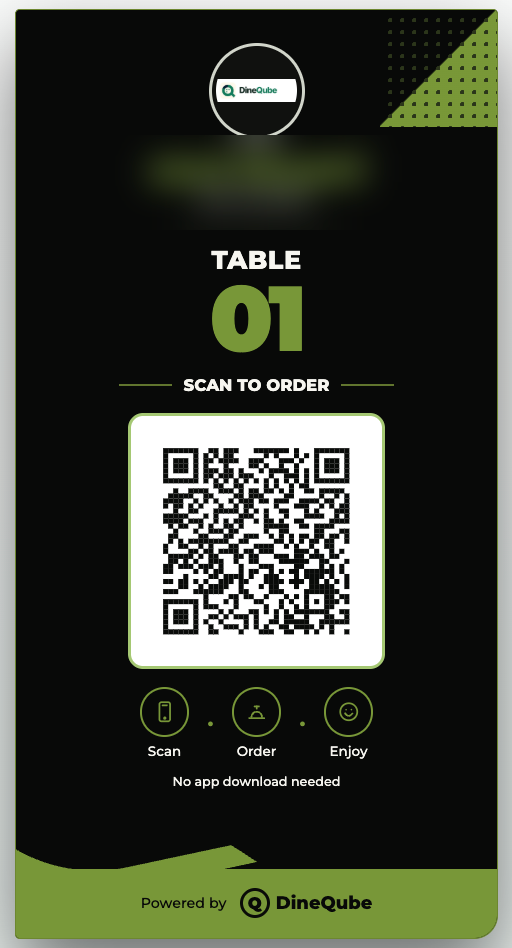

Give guests a browser-based menu that can do more than display items: scan, browse, order or request service, then send that action directly into DineQube operations.
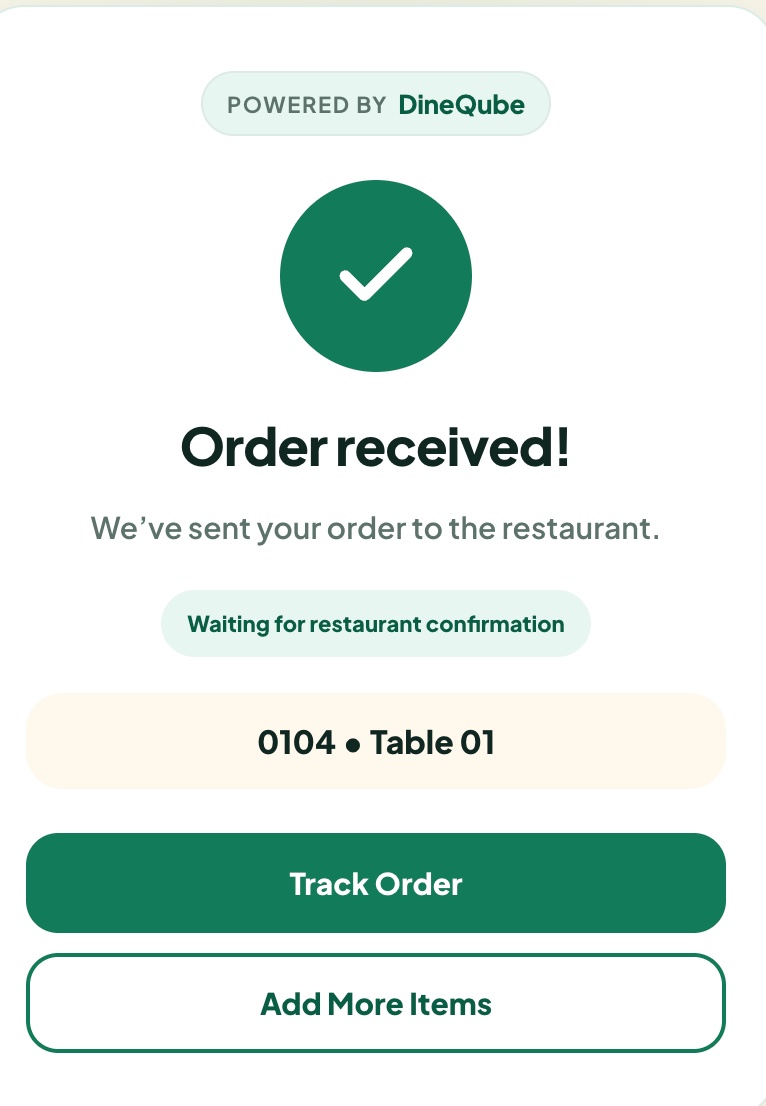
A table QR gives guests a browser-based menu and ordering path that connects to live Restaurant operations.
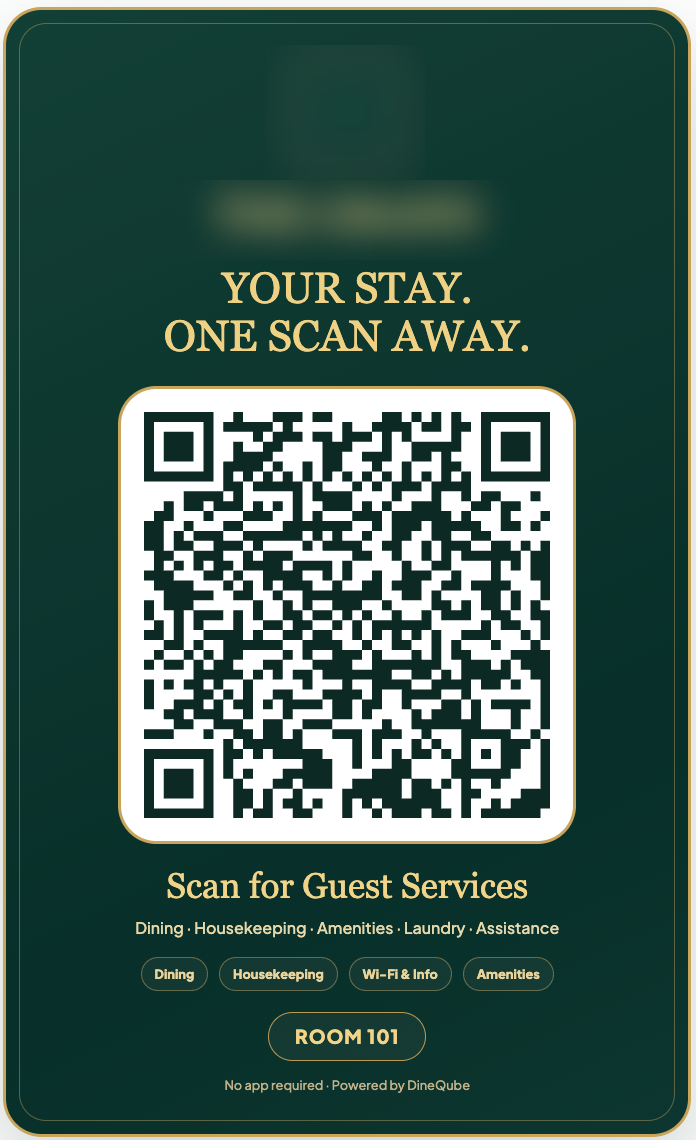
A room QR can open the hotel guest experience for food, amenities, housekeeping and assistance.
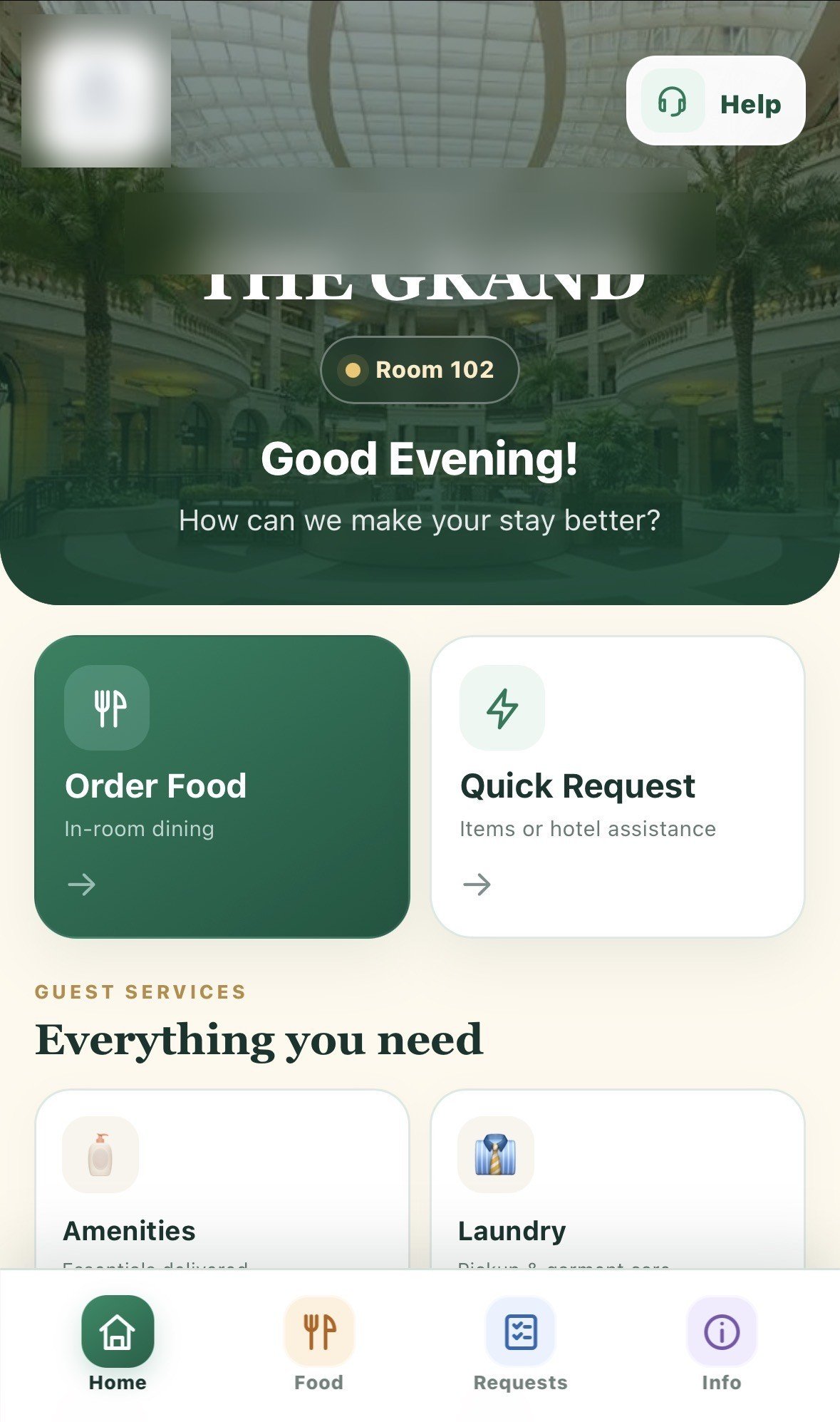
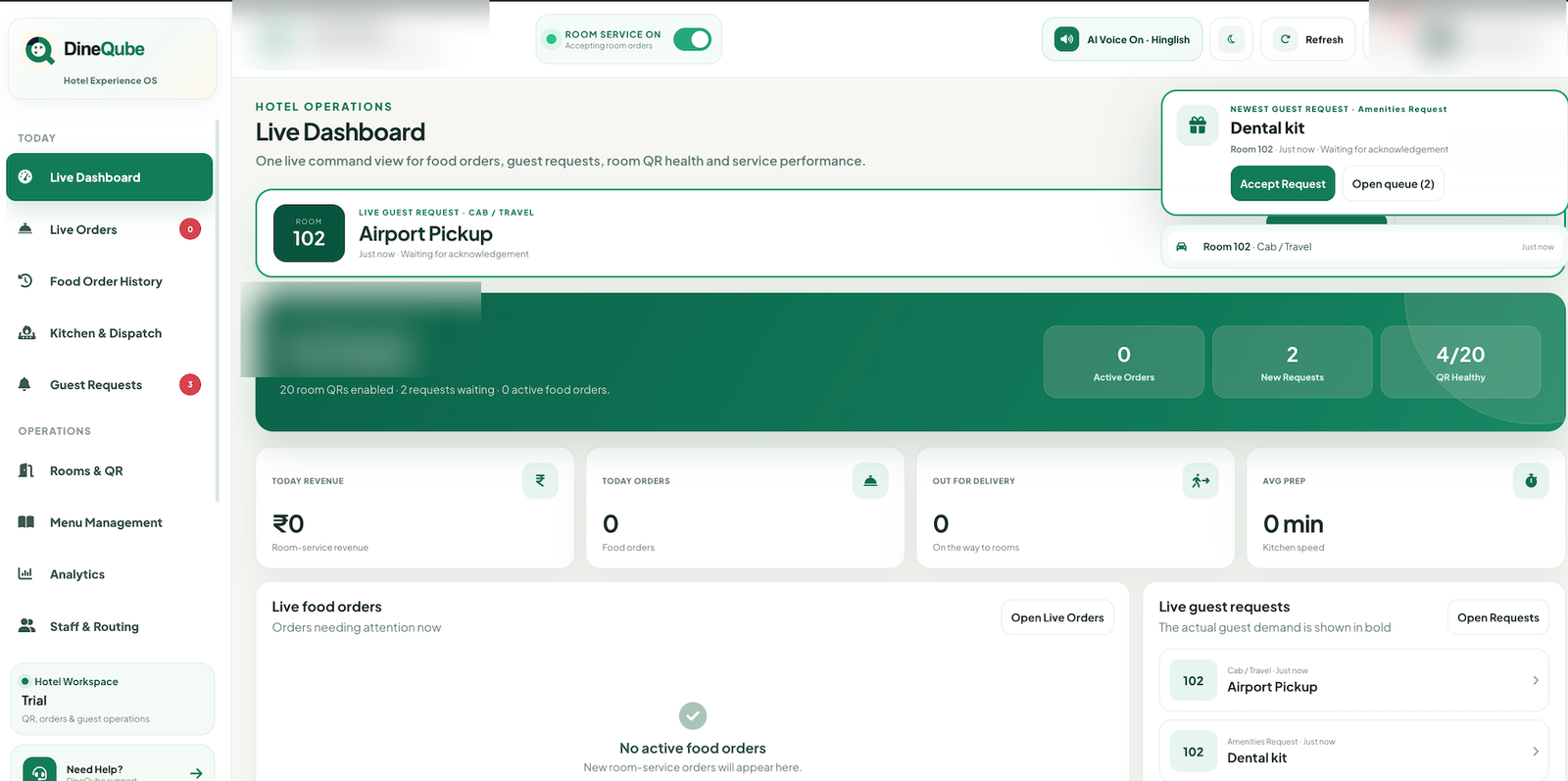
A QR Menu lets a guest scan a code with their phone to access a digital menu or service experience. The simplest version displays a static menu. An interactive QR ordering system can go further by letting the guest browse, select and submit an order or request from the same experience.
A QR code points the guest to a mobile web experience. With DineQube, that web experience can connect to Restaurant ordering or Hotel guest services.
QR ordering can reduce repeated manual ordering steps, give guests direct menu access and connect customer actions to live operational screens.
Hotels can use a room QR as a guest experience entry point for food, amenities, housekeeping, laundry and assistance.
A PDF can display information. An interactive QR experience can let the guest act — and route that action into the business workflow.
Operational events created through the QR journey can feed supported Qube AI alerts without turning the QR itself into an AI gimmick.
The DineQube guest journey is designed to work in the browser, keeping the scan-to-action path simple.
A PDF QR opens a document. An interactive QR menu lets guests browse categories, select dishes and send an order linked to the table. Choose the format based on what your staff need to receive and manage.
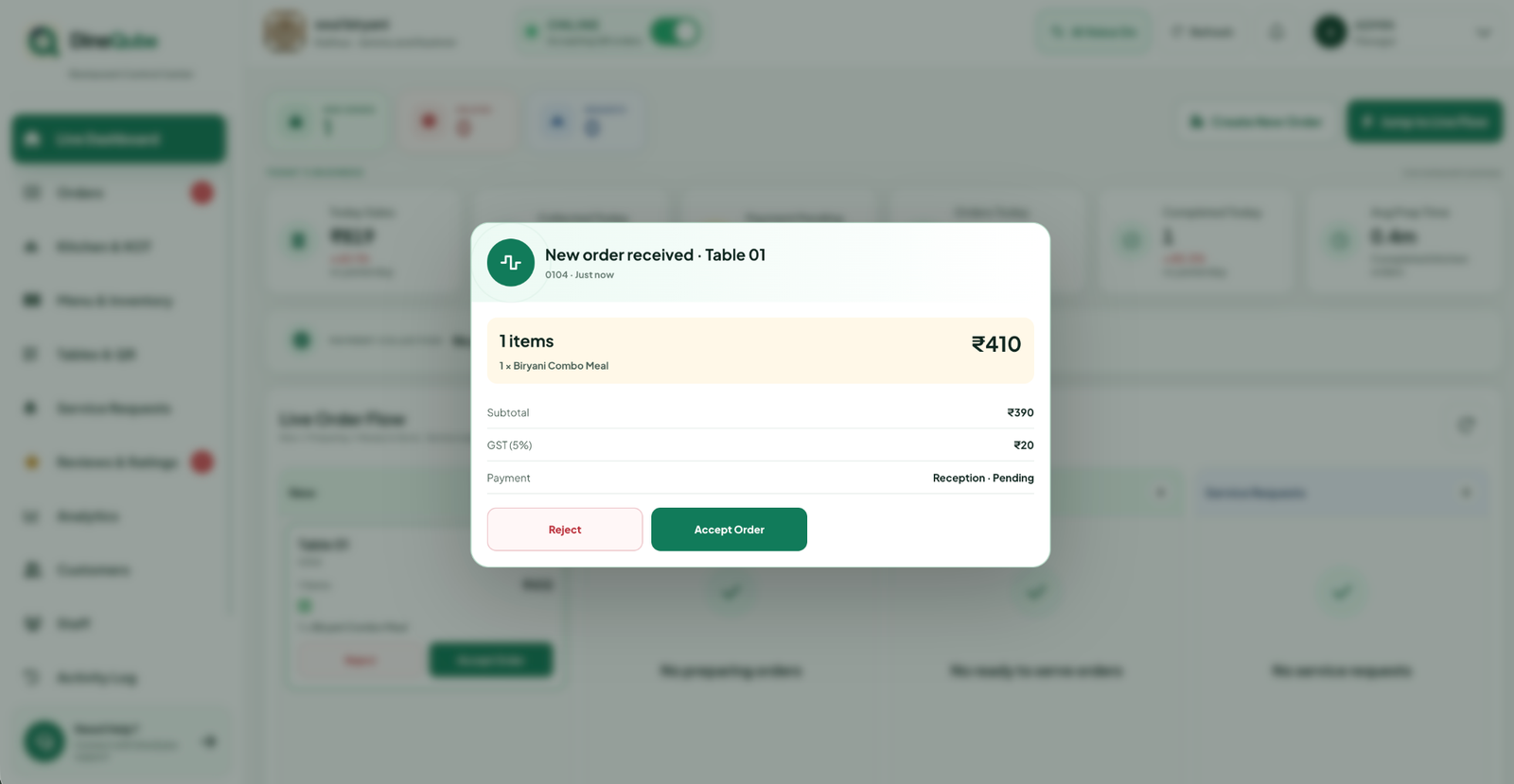
DineQube connects table ordering to the restaurant workflow. In your demo, check item availability, kitchen instructions, order status and the customer receipt, using your own service process.
Restaurant operations · QR menu · POS & billing · Restaurant plans
Before your next service
Practical answers on QR menus, room service, printing and menu changes.
Compare a PDF menu, a digital QR menu and QR ordering. Learn what changes for diners, menu updates and kitchen orders before choosing a restaurant setup.
Read the guide ↗Hotel guideA practical room-service checklist for hotel teams: room QR, menu, kitchen instructions, preparation, dispatch, delivery and payment collection.
Read the guide ↗Restaurant setupPlan a restaurant bill and KOT printer setup. Compare 58 mm and 80 mm paper, check printing connections, and test kitchen tickets before service.
Read the guide ↗Menu managementPrepare a restaurant price update safely: match existing items, compare old and new prices, check variants and approve the changes before publishing.
Read the guide ↗Connect QR discovery with ordering, kitchen and guest-service operations.